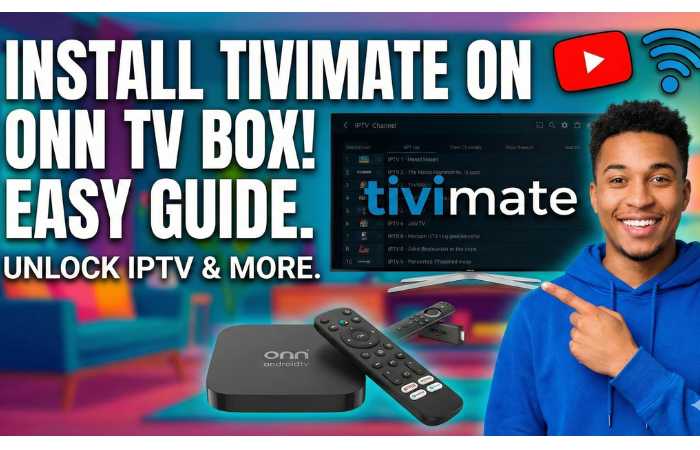

TiviMate Installation Guide for ONN TV Box
What You'll Learn
- How to enable developer options and unknown sources on your ONN box
- The two installation methods: direct Google Play Store vs. sideloading
- Adding your IPTV service with M3U playlists or Xtream Codes
- Configuring the Electronic Program Guide (EPG) for a better experience
- Troubleshooting common issues specific to ONN devices
- Pro tips to optimize your TiviMate experience
If you've just picked up an ONN TV box and want to unlock its full potential for IPTV streaming, you're in the right place. TiviMate is one of the best IPTV players available today, but here's the thing - you won't find it on your ONN device's standard app store. That's where this guide comes in. We'll walk you through every single step to get TiviMate up and running on your ONN TV box, from enabling developer options to adding your IPTV playlist. Whether you're new to streaming or just switching devices, this comprehensive tutorial has you covered.
What You Need to Know First
Before we dive into the installation process, let's talk about what TiviMate actually is and why it's become so popular among cord-cutters and streaming enthusiasts. TiviMate is a sophisticated IPTV player specifically designed for Android TV devices like your ONN box. Here's what sets it apart: it's not a streaming service itself, but rather a premium media player that acts as a hub for your IPTV subscriptions.
Think of it this way - TiviMate is like having a professional remote control and interface for all your live TV channels. It supports both M3U playlists and Xtream Codes API, which means it's compatible with virtually any legitimate IPTV provider. The app boasts features like Electronic Program Guides (EPG), recording capabilities, multi-playlist support, and a sleek, intuitive interface that feels native to Android TV.
Now, here's what you absolutely need to know: TiviMate doesn't include any channels on its own. You'll need an active IPTV subscription from a provider that gives you either an M3U playlist URL or Xtream Codes credentials. Without this, TiviMate is just an empty shell. If you don't have an IPTV subscription yet, contact your provider and ask them for your playlist details. Most reputable providers will send this to you via email after purchase.
Step 1: Check Your ONN TV Box Model
This is important, and honestly, a lot of people skip this step. There are different ONN TV box models, and some behave slightly differently during the installation process. The most common models include:
- ONN Google TV 4K Streaming Device (the original)
- ONN 4K Plus
- ONN 4K Pro with 32GB storage
- ONN Generic Android TV Boxes
The good news? This guide works for all of them. The general process is identical, though some newer models like the ONN 4K Pro might have slightly different menu placements. If you're unsure which model you have, just look at the device itself or check the packaging it came in. Write down your model number - you'll thank me later if you need specific support.
Step 2: Enable Developer Options
This is the foundation for everything that comes next. Developer options unlock the ability to install apps from unknown sources, which is absolutely necessary since TiviMate isn't available in the standard Google Play Store for Android TV.
How to Enable Developer Options
- Go to Settings: From your ONN home screen, navigate to the Settings menu. Look for a gear icon, usually in the top right corner.
- Find the About Section: Scroll down until you see "About" and select it. This might be nested under "System" or "Device" depending on your ONN model.
- Locate the Build Number: In the About section, scroll down and find "Build number." This is the magic button. Don't be alarmed if it takes some searching - sometimes it's buried under "System Information."
- Tap 7 Times: Here's where it gets fun. Click on "Build number" exactly 7 times in succession. You'll see the count go down with each tap.
- Look for the Developer Message: After the 7th tap, you'll see a message appear saying "You are now a developer!" or something similar. This confirms you've successfully unlocked developer options.
- Return to Settings: Go back to the main Settings menu. You'll now see "Developer options" listed where it wasn't before.
Step 3: Enable Installation from Unknown Sources
Now that you've unlocked developer options, it's time to allow your ONN device to install apps from outside the official Google Play Store. This is crucial for getting TiviMate onto your device.
The Process
- Open Developer Options: From Settings, select "Developer options" which should now be visible.
- Find Security Settings: Some ONN models organize this under "Device Preferences" > "Security & Restrictions." Others might have it directly in Developer options. Look for anything related to "Unknown sources" or "Install unknown apps."
- Toggle Unknown Sources On: Find the option labeled "Unknown sources" or "Install from unknown sources" and flip the toggle switch to the ON position. The switch should turn blue or green.
- Read the Warning: Google will show you a warning message about the risks of installing apps from unknown sources. This is standard protocol. Read it, understand it, and click OK. The warning isn't saying TiviMate is unsafe - it's just Google being cautious about any sideloaded apps.
- Confirm the Change: Some devices will ask you to confirm this for specific apps (like Downloader). That's fine - just say yes to allow it.
Step 4: Choose Your Installation Method
Here's where you have two paths forward, depending on your ONN model and what's available in your Google Play Store.
Method A: Direct Installation from Google Play Store (Easiest)
If TiviMate appears in your ONN device's Google Play Store, you're in luck. This is the simplest approach.
- Open the Google Play Store from your ONN home screen
- Search for "TiviMate" in the search bar
- Look for the app by "AR Mobile Dev" - that's the official developer
- Click "Install" and wait for the download to complete
- Once installed, click "Open" or find TiviMate in your apps list
The caveat? Not all ONN models have TiviMate in their Play Store. Some run a non-TV version of Android that doesn't include it. If you don't see TiviMate after searching, don't worry. That's what Method B is for.
Method B: Sideloading with the Downloader App
This is the method that works for virtually every ONN device, 100% of the time. The Downloader app, created by AFTVnews, is your secret weapon for installing TiviMate.
Sideloading TiviMate Step-by-Step
- Install Downloader: Open your Google Play Store and search for "Downloader." Look for the one by AFTVnews. Install it on your ONN box.
- Grant Permissions: When you first open Downloader, it'll ask for permissions. Allow all of them - Downloader needs these to function properly.
- Enable Unknown Sources for Downloader: If a prompt appears asking you to enable "Install unknown apps" for Downloader, say yes. Go back to Settings > Developer options if needed and toggle it on specifically for Downloader.
- Open Downloader: Launch the Downloader app on your ONN box.
- Enter the TiviMate Code: You'll see a text input field (the URL bar). Instead of pasting a long URL, Downloader has a shortcut system. Enter the code: 272483
- Wait for Download: Downloader will fetch the TiviMate APK file. This usually takes 30-60 seconds depending on your internet speed.
- Install TiviMate: Once the download completes, a prompt will appear asking if you want to install. Click "Install."
- Confirm Permissions: You'll see a security warning. Click "Settings" if needed, then allow the installation. If a "Blocked by Play Protect" message appears, click "Details" > "Install anyway."
- Wait for Completion: TiviMate will install. Click "Done" rather than "Open" - we'll launch it in a moment.
Step 5: Verify TiviMate Installation
This quick verification step might seem obvious, but it's important. Before you start configuring playlists, make sure TiviMate actually appears in your apps list.
Check This Now: Go to Settings > Apps > See all apps. Scroll through the list and confirm that "TiviMate" is there and listed as "Installed." If it doesn't show up, the installation didn't complete properly. Try sideloading again or clearing the cache of your file manager app.
Step 6: Add Your IPTV Service to TiviMate
Now comes the part where TiviMate actually becomes useful. You need to connect your IPTV service, and there are two main ways to do this depending on what your provider gave you.
M3U vs. Xtream Codes
Your IPTV provider will give you credentials in one of two formats:
M3U Playlist: This is a single URL link that looks something like http://example.com/playlist.m3u. It's the simpler format and works with basically any provider. M3U is best if you want basic streaming without complications. Your provider will give you one link, you paste it into TiviMate, and you're done.
Xtream Codes API: This format gives you a server URL plus a username and password - think of it like logging into a website. Xtream Codes is the more advanced option and provides better features. You get automatic EPG loading, VOD (Video On Demand) support, better channel organization, and a smoother overall experience. If your provider offers both options, I'd recommend using Xtream Codes.
Adding Your Playlist (M3U Method)
- Launch TiviMate from your apps list
- You'll see the main interface. Look for "Add playlist" or a plus (+) icon
- Select "M3U Playlist"
- Paste your M3U URL exactly as your provider gave it to you - no extra spaces or modifications
- Click "Next" or "Add"
- TiviMate will load your channels. This can take 30 seconds to 2 minutes depending on how many channels you have
- Once loaded, click "Next" to proceed
Adding Your Playlist (Xtream Codes Method)
- Open TiviMate and select "Add playlist"
- Choose "Xtream Codes" (sometimes called just "Login")
- Enter your server address exactly as provided. It usually looks like: http://example.com:port (the port number is crucial - don't forget it)
- Enter your username
- Enter your password
- Click "Next" or "Connect"
- Let TiviMate sync your channels and EPG data. This is automatic with Xtream Codes
Common Mistake Alert: If you're getting "Invalid details" or channels won't load, check these three things: 1) Are you entering the server address correctly with the port number? 2) Are there any extra spaces before or after your credentials? 3) Is your IPTV subscription actually active and paid? These are the top three reasons playlist setup fails.
Step 7: Set Up Your Electronic Program Guide
The EPG is what gives you that cable-like TV guide experience. It shows you what's on now and what's coming up. Let's get it configured properly.
EPG Setup Instructions
- Open TiviMate Settings: Look for a Settings icon (usually a gear) in the TiviMate interface
- Find EPG Settings: Look for "EPG" or "Electronic Program Guide"
- If Using Xtream Codes: Good news - EPG usually loads automatically. You might just need to click "Update" to refresh the data
- If Using M3U: You'll need an EPG URL from your provider. This is a separate link (XMLTV format). Paste it into the EPG field and click "Update"
- Set EPG Retention: Go to "Past days to keep EPG" and set it to 1 day. This saves storage space on your ONN device
- Update Frequency: Set it to update automatically. Usually 4-6 hours is a good interval
- Save and Refresh: Click Update and let TiviMate refresh the guide data
If the EPG is still blank after this, don't panic. Sometimes it takes a few minutes to populate fully. Go back into EPG settings and manually select "Update" to force a refresh.
Step 8: Customize TiviMate
Now that everything's installed and connected, let's make TiviMate work exactly how you want it.
Essential Settings to Adjust
Manage Channels and Groups: If your playlist has channel groups you don't want to see, go to Settings > Channels and disable the ones you're not interested in. This speeds up channel loading.
Playback Settings: If you're experiencing buffering or stuttering, try going to Settings > Playback and selecting a different decoder (try "Hardware" if available, or "Software" if hardware isn't working). You can also increase the buffer size here.
Video Quality: If you have slower internet, you might want to limit video quality to reduce buffering. Go to Settings > Video quality and select a lower resolution if needed.
Recording Setup (Premium Feature): If you have TiviMate Premium, you can record shows. Go to Settings > Recording and set your storage location. Make sure you have enough free space on your ONN device.
Troubleshooting Common Issues
Even with perfect installation, sometimes things don't work as expected. Here's what to do when common issues pop up.
Channels Won't Load
The Issue: You've added your playlist, but no channels appear. TiviMate just shows an empty list.
The Fix: First, verify your subscription is active by logging into your provider's website. If it's active, double-check that you entered your credentials exactly as provided - watch out for typos, extra spaces, and ensure the protocol is correct (http vs. https). Try copying and pasting your URL directly from your provider's email. If you're using M3U, test the URL by pasting it into a web browser. If it doesn't load in the browser, it won't work in TiviMate either - contact your provider.
Buffering and Playback Issues
The Issue: Channels start playing but constantly pause and buffer, or video keeps cutting out.
The Fix: This is usually a network issue, not a TiviMate problem. First, try switching to a wired Ethernet connection if possible - Wi-Fi can be unstable for streaming. If that's not an option, move your ONN device closer to your router. In TiviMate settings, increase the buffer size under Playback settings. Lower the video resolution if you're on slower internet. Finally, check that no other devices are heavily using your internet - streaming video is bandwidth-hungry.
App Crashes or Won't Open
The Issue: TiviMate opens briefly then crashes, or won't launch at all.
The Fix: Force stop the app and clear its cache. Go to Settings > Apps > TiviMate > Force Stop, then go back and click "Storage" > "Clear Cache." Don't clear all app data unless you're willing to re-add your playlists. If it still crashes, try updating TiviMate through the Downloader app (code 272483) to get the latest version. Occasionally, restarting your entire ONN device helps too.
EPG Not Loading
The Issue: You see channels but no program information or TV guide.
The Fix: If you're using Xtream Codes, EPG should be automatic - try clicking "Update" in EPG settings. If you're using M3U, make sure your provider gave you a separate EPG URL. Paste it into Settings > EPG and click "Update." Sometimes EPG takes time to populate - wait 5-10 minutes and try again. If it's still blank, contact your provider to confirm they provide EPG data and get the correct EPG URL.
ONN 4K Pro Specific Issue: URL Auto-Correction
The Issue (ONN 4K Pro Only): When entering your Xtream Codes server address, the device auto-corrects dots or changes what you're typing (e.g., "ky-iptv.com" becomes "Kyiv.com").
The Fix: This is an ONN keyboard auto-correct problem. Try disabling predictive text. Go to Settings > Input & language > On-Screen Keyboard > Prediction, and toggle it off. Alternatively, use a USB keyboard or mouse connected to your ONN device - it bypasses the on-screen keyboard. The easiest workaround is to copy and paste your server address directly instead of typing it manually.
TiviMate Premium vs. Free
Here's the reality about TiviMate's free vs. premium versions. The free version works perfectly fine for basic TV watching. You get channels, EPG, basic playback, and search. Premium unlocks advanced features like recording, multi-view (watch 4 channels simultaneously), favorite channel organization, and multi-playlist support.
To upgrade to Premium, you'll need the TiviMate Companion app on an Android smartphone or tablet (unfortunately not available for Android TV). Buy the premium license through the companion app, then log into TiviMate on your ONN device with the same Google account. The premium features will unlock automatically.
Do I Need Premium?
Not necessarily. If you're just watching TV, the free version is solid. But if you want to record shows, organize your channels better, or watch multiple streams simultaneously, premium is worth the investment. It's a one-time purchase, not a subscription.
Pro Tips
Use a VPN for Privacy
Here's something nobody talks about enough: your ISP and anyone monitoring your network can see what you're streaming. I strongly recommend using a VPN on your ONN device. It encrypts your traffic and masks your IP address. Set it up before launching TiviMate, connect to a server, then open TiviMate. The only exception: if setting up your IPTV service fails while using a VPN, temporarily disconnect, add your playlist, then reconnect.
Back Up Your Playlist Information
Save your IPTV credentials somewhere safe (not on the ONN device itself). If you ever need to reinstall or reset your device, you'll have your login info ready. A simple text file in your email or a password manager is perfect.
Keep Your Apps Updated
Check the Downloader app periodically and update TiviMate to the latest version. Updates often include bug fixes and performance improvements. Just use Downloader with code 272483 again to get the newest version.
Use Ethernet When Possible
If your ONN box is close to your router or you have an available Ethernet port, use it. Wired connections are significantly more stable than Wi-Fi for streaming.
Monitor Your Storage
The ONN 4K Pro has 32GB of storage (with about 11GB already used by the OS). Standard ONN boxes have less. If you plan to use TiviMate's recording feature, check your available storage regularly. Go to Settings > Storage to see what's being used.
Is TiviMate Legal?
This question comes up a lot, so let's address it. TiviMate itself is 100% legal - it's just a media player app, like VLC. However, what you watch with it depends on your IPTV subscription. Only use IPTV services that operate legally in your country. If you're unsure about your provider's legitimacy, do some research or contact them directly.
When Things Still Don't Work: Next Steps
If you've followed every step and TiviMate still won't cooperate, here's what I'd try:
- Full Reinstall: Uninstall TiviMate completely through Settings > Apps > TiviMate > Uninstall. Restart your ONN device. Then reinstall using the Downloader method with code 272483.
- Factory Reset Your ONN: As a last resort, go to Settings > System > Reset and choose "Factory Reset." This wipes everything, but it often fixes stubborn issues. Just remember you'll need to set up TiviMate again from scratch.
- Contact Your IPTV Provider: If playlists won't load, the issue might be with your subscription or credentials. Reach out to your provider's customer support - they've seen these problems before and can help verify your account is active.
- Check Your Internet Speed: Run a speed test on your network. For reliable streaming, you want at least 5 Mbps for standard definition and 10+ Mbps for 4K. If your speed is the problem, contact your ISP.
FAQ
Q: Can I install TiviMate on multiple ONN devices with one subscription?
A: Yes, absolutely. Your IPTV provider's credentials work on any device. Install TiviMate on as many ONN boxes as you own, add your playlist to each, and you're good. The limitation depends on your provider - most allow simultaneous streams on 2-4 devices at once.
Q: Does TiviMate work offline?
A: No. TiviMate needs an active internet connection to fetch channels and EPG data from your provider. However, if you've recorded shows locally, you can watch recordings without internet.
Q: Will installing TiviMate void my ONN TV box warranty?
A: It shouldn't. You're simply enabling a standard Android feature (developer options) and installing an app. You're not modifying system files or the device firmware. As long as you don't factory reset your device and claim it's broken, you're fine.
Q: How often should I update the EPG?
A: Let TiviMate handle it automatically. Set it to update every 4-6 hours in settings. If you want the absolute latest program information, you can manually update from the EPG menu whenever you want.
Q: My ONN device won't let me enter the Downloader code. What do I do?
A: This typically means the on-screen keyboard isn't responding properly. Try these workarounds: 1) Disconnect from your network briefly and reconnect. 2) Unplug the ONN device for 30 seconds. 3) Switch to a USB keyboard if you have one available. 4) Try entering the code through Settings > Input if there's a text input field there.
Q: Can I watch 4K content on ONN with TiviMate?
A: Yes, if your IPTV provider offers 4K channels and your internet can handle it (25+ Mbps recommended). However, not all providers offer 4K, and streaming 4K requires significant bandwidth. Check with your provider if 4K channels are included in your subscription.
Getting TiviMate running on your ONN TV box is absolutely doable. Yes, there are more steps than just clicking "Install" from an app store, but following this guide step-by-step will get you there. The beauty of TiviMate is that once it's set up, it becomes your permanent gateway to all your IPTV content - organized, searchable, and reliable.
Take your time with each step. There's no rush. If something doesn't work, go back and re-read that section. Nine times out of ten, a small detail like a mistyped URL or a toggle you missed is the culprit. Remember, thousands of people are successfully using TiviMate on ONN devices right now. If they can do it, so can you.
Enjoy your streaming, keep your internet connection stable, and don't hesitate to reach out to your IPTV provider if playlist issues come up. Now, go grab the remote and start exploring what your ONN TV box can really do.
